
English
Quick Start
OpenWrt Quick Install/Update (Recommended)
Run the following command to automatically download and install the latest version:
bash
uclient-fetch -q -O - https://raw.githubusercontent.com/stackia/rtp2httpd/main/scripts/install-openwrt.sh | sh -s -- --lang enThe script will automatically:
- Detect your device's CPU architecture
- Fetch the latest version from GitHub Release
- Download and install all necessary packages (main program + LuCI interface + language pack)
- If previously installed, running this script will uninstall the old version and reinstall the latest version
TIP
If the install script doesn't work, you can manually download the packages for your architecture from the Releases page:
rtp2httpd_<version>_<arch>.ipk- Main program packageluci-app-rtp2httpd_<version>_all.ipk- LuCI Web interfaceluci-i18n-rtp2httpd-zh-cn_<version>_all.ipk- Chinese language pack
bash
# If you don't know your architecture, use this command to get it
cat /etc/openwrt_release | grep ARCH

# Manually upload ipk files to device and install
opkg install rtp2httpd_*.ipk luci-app-rtp2httpd_*.ipk luci-i18n-rtp2httpd-*.ipk
Basic Configuration
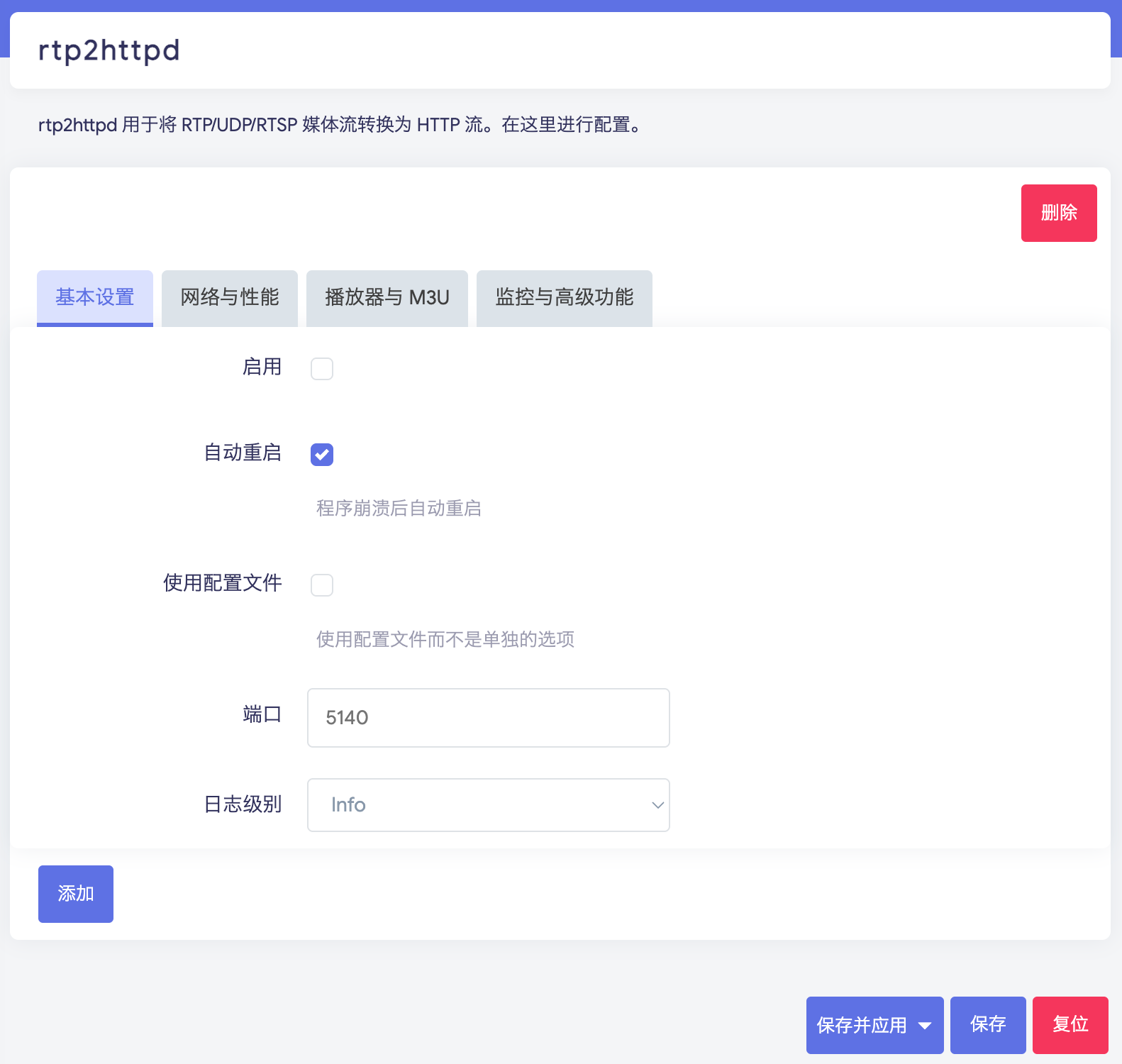
After installation, find "rtp2httpd" in the "Services" menu of the LuCI management interface to configure:
WARNING
After each version update, if LuCI behaves abnormally, you need to Ctrl+F5 refresh or clear browser cache or use incognito mode to resolve.
IMPORTANT
If rtp2httpd entry does not appear in LuCI after installation, it means your LuCI version is too old to support JS-based LuCI plugins. Please consider updating your firmware, or manually edit and maintain /etc/config/rtp2httpd (set disabled to 0), and use /etc/init.d/rtp2httpd restart to restart the service.
Some community members have developed Lua-based luci-app-rtp2httpd, which you can try in this case (not officially maintained by rtp2httpd)
Required Configuration Items
- Basic Settings - Enable: Check to enable rtp2httpd
- Basic Settings - Port: Default 5140, or customize
- Network & Performance - Upstream Interface: Set to IPTV network interface
Optional Configuration Items
- Player & M3U - External M3U: If you have an existing M3U playlist, fill in this setting to use the Built-in Web Player (M3U Playlist Integration)
- FCC Server: For fast channel change, you need to include the FCC server address in the program URL (FCC Fast Channel Change Setup)
Test Access
After configuration, you can test access with the following URLs:
bash
# Access RTP multicast stream
http://router-IP:5140/rtp/239.253.64.120:5140

# Access status page
http://router-IP:5140/status

# Get M3U playlist (if configured)
http://router-IP:5140/playlist.m3u
Use Built-in Player
If M3U playlist is configured, you can directly access http://router-IP:5140/player in your browser to open the Built-in Web Player.
Use in Other Players
Add http://router-IP:5140/playlist.m3u to any IPTV-compatible player to watch.
View Logs
There are three ways to view runtime logs:
- Visit the status page
/status, view logs at the bottom of the page - In the OpenWrt admin panel, "Status" -> "System Log" to view logs
- SSH connect to router and run
logread -e rtp2httpd
Next Steps
- Built-in Web Player: Player features and compatibility notes
- Installation Methods: Learn about other installation methods (Docker, static binary, build from source)
- M3U Playlist Integration: Configure playlist auto-recognition and conversion
- URL Format Guide: Learn all supported URL formats
- Configuration Reference: In-depth understanding of all configuration options
- FCC Fast Channel Change Setup: Enable millisecond-level channel switching